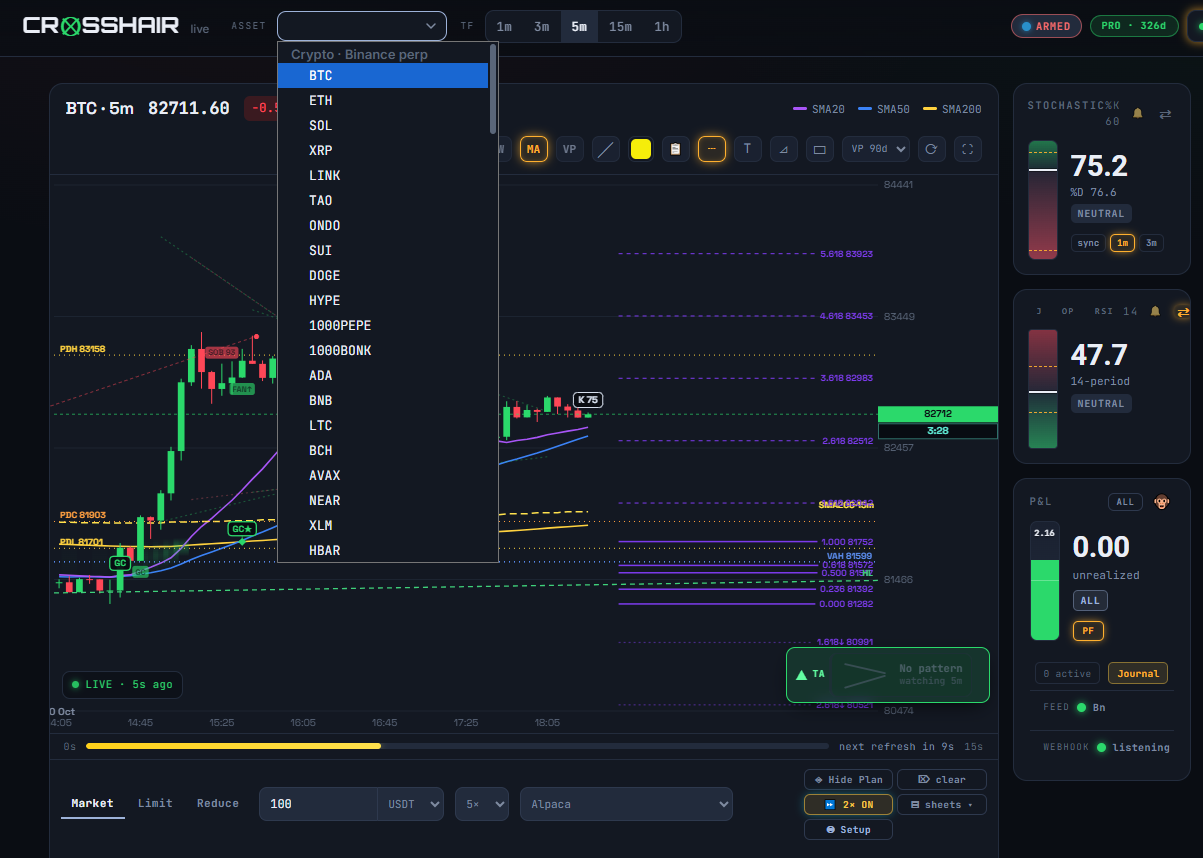
Choose an asset
Decide what you want to trade — a crypto perp like BTCUSDT, a tokenised stock, an index. The scanner hunts price-action setups across your watchlist for you to trade by hand, while the Strategy library gives you backtested, high-probability entries and exits you can automate through TradingView — monitored and tweaked as needed.
Start on the Strategies page → find one whose asset & timeframe match how you want to trade. Note: Only cTrader & Alpaca support stocks and indice webhook trading, all others are crypto only.
Connect a broker & claim a slot
Add your broker or exchange in Settings (cTrader, OKX, Bitunix, Aster, Alpaca). Then fill a slot — each TradingView alert carries a slot number(up to 16), and the row tells CROSSHAIR the venue, asset and size to use. Give it a note so you remember which strategy feeds it.
cTrader uses lots for size · Bitunix / Aster / OKX use USDT.
US500 · Binance/OKX SPYUSDT). Your TradingView chart can be a different symbol — it only fires the alert. Match the box name to the venue, not the chart name. cTrader 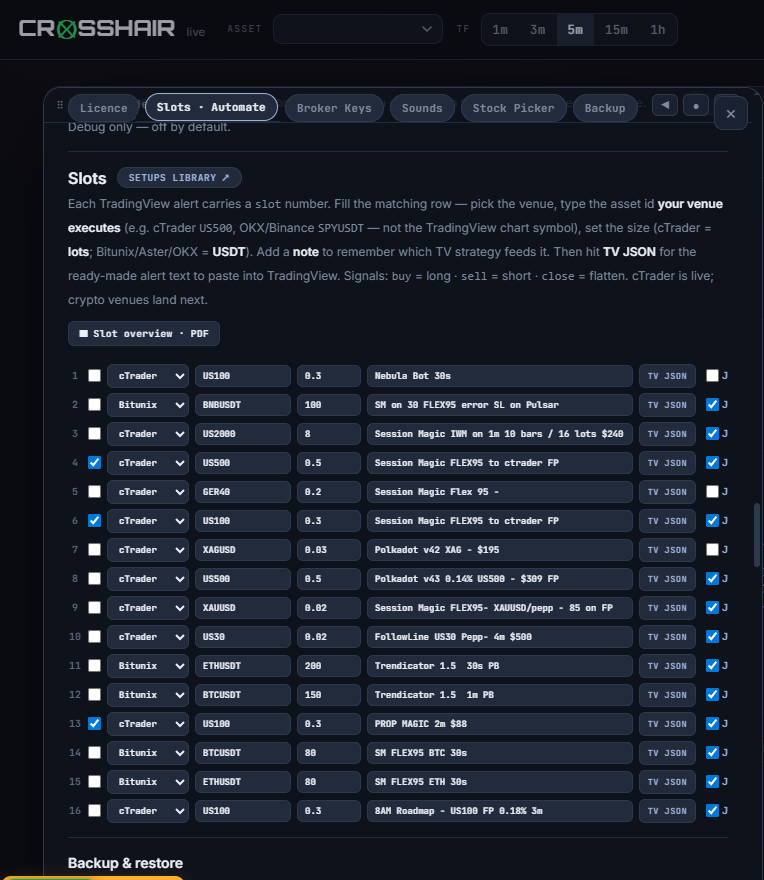
Paste the JSON into TradingView
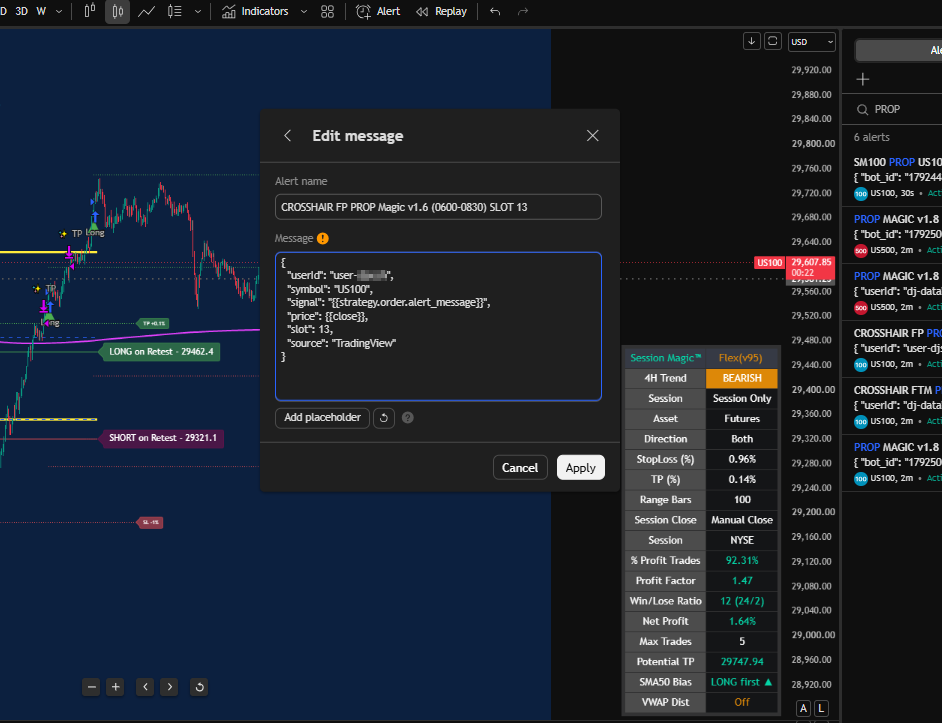
Hit TV JSON on the slot. CROSSHAIR hands you a ready-made alert — the webhook URL and the message body. Create an alert on your strategy in TradingView, tick Webhook URL, and paste both in. That's it — the strategy now fires straight to your broker. Additionally, if you tick the J at the end of the column, this adds the trade events into the Journal
https://relay.blackswanindicators.in/webhookCopy{
"userId": "user_xxxx",
"symbol": "BTCUSDT",
"signal": "{{strategy.order.alert_message}}",
"slot": 1,
"source": "TradingView"
}
You pick it, you tweak it, and it just runs. No agent deciding things behind your back.